Pickup
Pickup timings, address management, failure reasons, verification process, delays, cancellation, disputes, pickup IDs, escalation, and Pickups by Shiprocket
Product Info
What is a Pickup?
A pickup is the process where a courier Field Executive (FE) visits the seller's registered pickup address to collect shipments for delivery. Sellers schedule pickups from the Shiprocket seller panel after assigning a courier partner to an order.
The courier will make 3 attempts to pick up an order. If the pickup is unsuccessful after three attempts, no further attempts will be made.
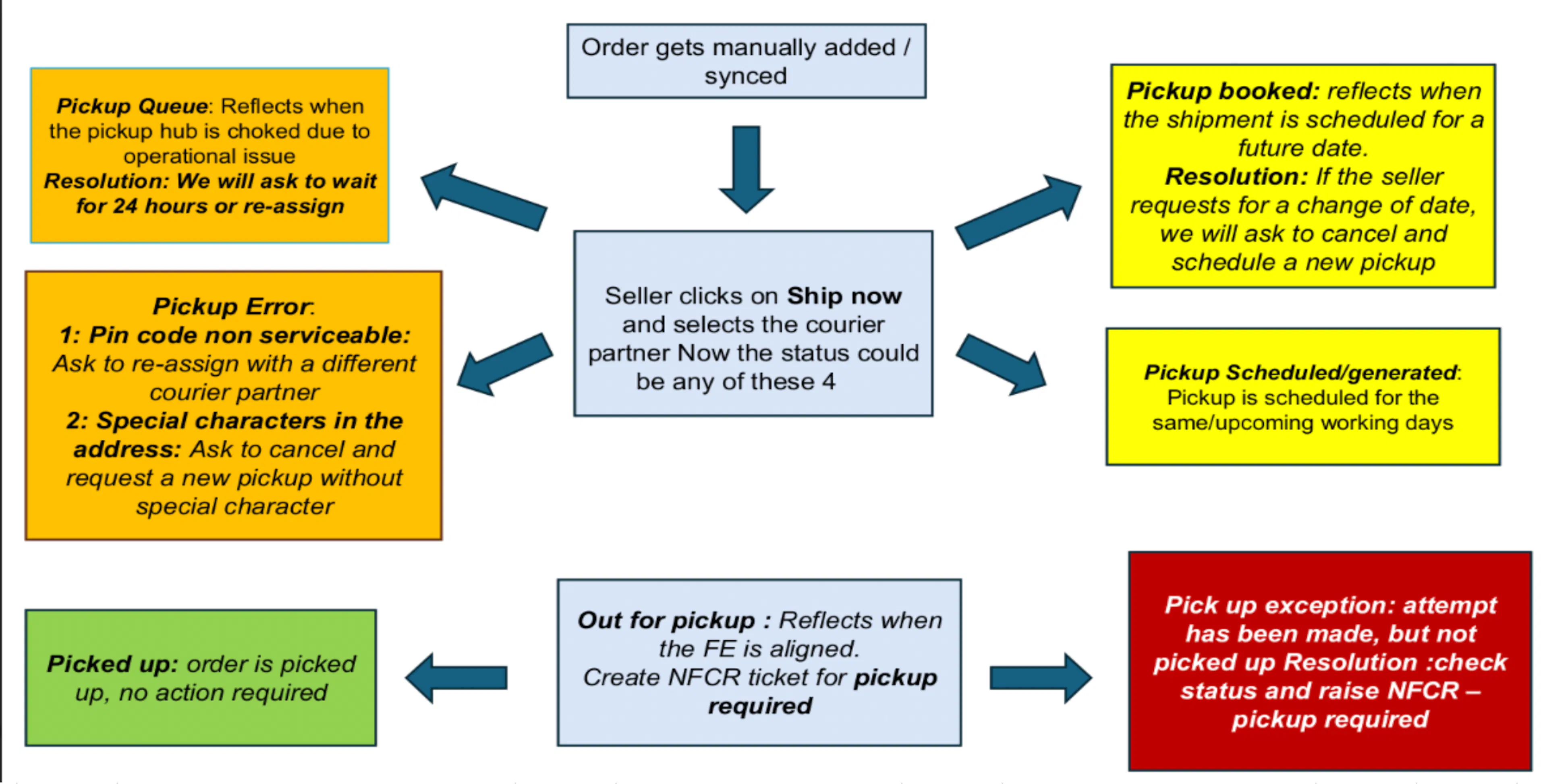
Pickup Timings
The standard pickup cut-off time for all courier partners is 11:00 AM.
-
If a pickup is scheduled before 11:00 AM, the pickup attempt will be made on the same day.
-
If the pickup is scheduled after 11:00 AM, it will automatically be scheduled for the next business day.
Sellers also have the option to reschedule pickups directly from the seller panel based on product readiness, packing time, and operational availability.
Sellers can schedule a pickup up to 5 working days in advance.
Note: Time-specific pickups are not available. Sellers should remain available at the pickup location between 10:00 AM and 7:00 PM.
Pickup Address
Our platform is designed to support drop-shipping operations, allowing sellers to add 100+ pickup addresses from the seller panel.
Important Guidelines
-
Once a pickup address is added, it cannot be deleted due to security and record-maintenance purposes. However, it can be disabled (made inactive) from Settings > Pickup Addresses by clicking the toggle for that address. Ensure the address is not set as the primary or RTO address before disabling.
-
Pickup addresses can only be edited within the same PIN code. The state, city, and pincode of a pickup address cannot be changed.
-
By default, the pickup address is also considered the RTO (Return to Origin) address.
-
Sellers can select the option "Different RTO Address" if they want to configure a separate return address.
-
Pickup addresses can be changed on an order only before the courier is assigned.
How to Add a New Pickup Address
-
Go to Settings from the left menu.
-
Click on Pickup Address > Manage Pickup Addresses.
-
Click on the Add Pickup Address button at the top right corner.
-
Fill in the following details:
-
Address Nickname
-
Contact Name, Phone, Alternate Phone, Email
-
Address Line 1, Address Line 2, Pincode, Warehouse Timings
-
-
Click Save Address.
Bulk pickup locations can also be uploaded using the upload icon on the top right corner of the page.
How to Set a Different RTO Address
-
Go to Settings > Pickup Address > Manage Pickup Addresses.
-
Click the Edit icon on the relevant pickup address.
-
In the pop-up, click Use different address as RTO Address.
-
Click Save Address.
How to Change the Phone Number of a Pickup Address
-
Go to Settings > Pickup Address > Manage Pickup Addresses.
-
Click the Edit icon on the relevant pickup address.
-
In the pop-up, click the Edit icon next to the Phone field and update the number.
-
Click Save Address.
How to Set a Primary Address
-
Go to Settings > Pickup Addresses.
-
Click the three-dots menu for the address you want to set as primary.
-
Click Mark as Primary Address.
How to Verify a Pickup Address
-
Go to Settings > Pickup Addresses.
-
Click the three-dots menu for the address.
-
Click Verify Address and enter the mobile number to receive an OTP.
-
Enter the OTP and click Verify. Verification via IVR call is also available.
Where Are Saved Addresses Stored?
All saved addresses are stored in Settings > Pickup Addresses. The list shows each address along with its RTO and primary tags.
Pickup ID
A Pickup ID is an alphanumeric unique identifier generated to group all shipments together based on the pickup address ID, courier, and scheduled date.
Examples:
-
Five shipments with the same courier partner scheduled for the next day → a single Pickup ID is generated for all five.
-
Five shipments scheduled for the next day with different courier partners → a unique Pickup ID is generated for each.
When Different Pickup IDs Are Generated
Two different Pickup IDs will be generated for shipments if:
-
One is scheduled before the pickup cut-off time and the other is scheduled after, on the same day.
-
The pickup addresses for both shipments are different.
-
Both shipments are assigned to different courier companies.
Pickup ID Statuses
-
Pickup Scheduled: Pickup of shipments has been scheduled.
-
Pickup Completed: All shipments were picked up.
-
Partially Completed: Only a few shipments were picked up from a specific Pickup ID.
-
Pickup Exception: The courier attempted pickup but was unable to complete it due to unforeseen circumstances.
-
Pickup Cancelled: All shipments associated with the Pickup ID are cancelled.
Pickup ID vs. Manifest ID
-
Pickup ID is used to escalate pickup delays.
-
Manifest ID is required to raise all other pickup-related issues (except pickup delay escalation). Manifest ID is still valid for pickup and must be presented when handing over shipments to the pickup executive.
-
No new escalations are available on Manifest ID for pickup delays. Pickup delay escalations must be raised using the Pickup ID.
-
Pickup escalation in Shiprocket Mobile Apps is also based on Pickup ID.
How to Find a Pickup ID
-
Go to Orders from the left menu.
-
Click on the Pickups & Manifests tab.
-
Under the Pickup IDs section, the unique Pickup ID for each scheduled pickup is listed.
What Happens If a Pickup ID Disappears?
When all shipments from one Pickup ID are moved to another Pickup ID, the original Pickup ID is removed from the system. Similarly, if all shipments in a Pickup ID are cancelled, the Pickup ID is automatically removed.
Pickup Failure Reasons
Pickup attempts may fail due to the following reasons:
-
Seller not contactable or unavailable
-
Pickup location/address was closed
-
Partial pickup handed over
-
Pickup was not ready at the scheduled time
Pickup Exception and NPR
-
Pickup Exception is the status marked when the courier attempted pickup but could not complete it. Reasons include: Pickup not attempted, Seller-initiated delay, Courier delay.
-
NPR (Non-Pickup Reason) denotes the specific reason why a shipment was not picked up from the seller.
When a pickup exception occurs, an IVR call is made to understand why the pickup could not be completed.
Pickup Error
A Pickup Error occurs when the courier refuses to accept the pickup request. This appears in the Ready to Ship tab under the Status column.
Common causes:
-
Order details are incorrect.
-
Courier company API returns an error response.
-
Shipment value exceeds Rs. 50,000 and an Eway Bill has not been uploaded.
-
The pickup or delivery pincode is in a non-serviceable zone (shipment marked as Pickup Exception — reassign to a different courier in this case).
Resolution: Depending on the error reason, edit the order details or reassign the shipment to a different courier partner.
Specific fixes based on reason:
-
Non-serviceable pincode: Reassign courier to one that services the pincode.
-
Special characters in address: Remove special characters from the address or create a new shipment.
-
If neither fix works: Cancel and recreate the shipment.
Note: Bulk retry for pickup error orders is not currently available.
Pickup Queued
If a shipment shows Pickup Queued status, wait 24 hours for it to get scheduled for pickup. If it does not get scheduled within 24 hours, reassign the shipment with another courier.
Tagging:
| Field | Value |
|---|---|
| SR Issue Category | Shipment Pickup |
| Sub Category | Pickup Misc |
| FCR/NFCR | FCR |
Pickup Verification Process (Fake Pickup Attempt Prevention)
Verification Requirement
-
Verify whether the shipper and vendor are the same person/entity.
-
If they are different, a call verification is mandatory on the shipper's registered contact number.
Mandatory Questions for Sellers
If the shipper and vendor are the same, always ask the following:
1. Pickup Availability Timing
Ask for the opening and closing timings of the pickup location, as most pickups are arranged from warehouses or commercial locations with fixed operating hours.
- If the seller expects pickup within a very limited time slot, guide them to remain available at the location between 10:00 AM and 7:00 PM, as time-specific pickups are not available.
2. Save FE (Field Executive) Contact Numbers
If the seller has regular shipments, advise them to save the contact numbers of pickup executives for the courier partners they use frequently.
This helps sellers:
-
Coordinate directly for pickup timing updates
-
Avoid missed pickup attempts
-
Get faster communication support
Note: Shiprocket does not share the pickup person's contact number as per courier regulations. This ensures FEs focus entirely on navigating to addresses and picking up orders without handling inbound calls. Sellers should be guided accordingly.
3. Partial Pickup Verification
In cases of partial pickups:
-
Ask the seller why all packets were not handed over together.
-
Inform them that the Field Executive (FE) generally does not revisit the same location twice in a single day.
-
Guide the seller to keep all packets ready and hand them over together during the pickup attempt.
Post Verification
After completing the above verification steps, assign the case to the LOPS team with the appropriate timeline. Packet images can also be taken as proof.
SOP — Pickup Required / Delay
Step 1: Check FSD (First Scheduled Date)
If FSD is NOT breached:
-
Inform the seller that pickup is scheduled as per timeline.
-
Create an NFCR ticket to the pickup channel.
If FSD IS breached:
-
Check for a pickup exception reason.
-
If reason is available: Share the reason with the seller.
-
If no reason or no attempt was made: Apologize to the seller → Create NFCR.
-
-
Confirm handover person:
- If shipper is handing over: Add shipper's contact number in the ticket.
Inform seller: "Ticket has been created, you will receive confirmation."
TAT (Turnaround Time)
-
Ticket raised before 11 AM → Same-day pickup attempt.
-
Ticket raised after 11 AM → Pickup attempt likely next day.
-
SOS case: Till 2 PM, same-day pickup attempt will be made (except Sunday/Holiday).
Tagging
| Field | Value |
|---|---|
| SR Issue Category | Shipment Pickup |
| Sub Category | Pickup Required |
Note: For India Post, the pickup timeline is 3 days from escalation raised date.
Delay Beyond 5 Days
If no pickup attempt has been made for more than 5 days:
- Immediately advise the seller to reassign the shipment to another courier partner instead of waiting further.
Delay Within 5 Days
If the delay is less than 5 days:
- Raise the issue with the LOPS team for further follow-up.
If the pickup is scheduled for the current day, advise the seller to wait until the end of the day. If pickup does not happen on the scheduled date, a ticket can be raised using the Create Ticket option against the order from the Pickups & Manifests page.
Frequent Reassignment Guidance
If a seller is repeatedly reassigning shipments on a daily basis, guide them properly regarding pickup timelines.
Important Clarification
-
If a shipment is reassigned after 11:00 AM, the pickup cycle restarts and the seller should wait until the next business day's end for the pickup attempt.
-
Every reassignment is treated as a new pickup request, regardless of previous delays.
-
Frequent reassignment may cause additional delays because pickup timelines reset after each reassignment.
Advise sellers to wait according to standard pickup timelines before reassigning shipments repeatedly.
To reschedule pickup: Sellers cannot directly reschedule. They must reassign the courier from the Ready to Ship tab (three-dots menu > Reassign Courier) and then schedule the pickup for the desired date.
Pickup Cancellation
Sellers can cancel pickups directly from the seller panel at all stages except when the shipment status is "Out for Pickup."
An order also cannot be cancelled after reaching the status of Out for Pickup (OFP). Cancellation is available up to and including the Pickup Scheduled status.
When the Cancellation Option Is Not Available
In such cases:
-
Ask the seller to wait until 8:00 PM.
-
Once the pickup status updates to either Pickup Exception or Pickup Rescheduled, the Cancel Pickup option will become available again on the panel.
Backend Cancellation Support
If required, a ticket can also be raised to cancel the shipment from the backend.
Delayed Cancellation Update
If the seller has already requested cancellation but the shipment status is not updated to Cancelled within 24 hours, raise a support ticket to complete the cancellation process.
Pickup Dispute
Mandatory Proof Requirement
The preferred proof for pickup dispute verification is:
- Signed Manifest
Alternate Verification Proofs
If a signed manifest is not available, the following can be used:
-
FE (Field Executive) name and contact number
-
Call recording with the FE
-
CCTV footage (if available)
Tracking Verification
Always check the shipment tracking status on the courier partner's official website as well.
-
If the shipment shows Picked Up on the courier website but remains pending in the ICRM panel, no additional proof is required from the seller.
-
In such cases, take a screenshot of the courier tracking page and use it as proof for verification.
SOP — Pickup Connection Dispute
Pickup done but status not updated → Treat as dispute.
Same Day (Seller Reaches Out on Same Day)
- Ask seller to wait till EOD — status will be updated.
Next Day (Seller Reaches Out on Next Day)
Collect the following details:
-
Pickup date
-
Shipment count
-
Signed manifest
-
FE number
Send ACR mail (Pickup Connection Issue template).
TAT: 5–7 working days after details received.
Important Notes
-
Timeline to raise dispute: 72 hours from picked up date.
-
If seller reaches out post that timeline, we will try to investigate but for the future share the timeline with the seller.
-
If seller does not have a signed manifest, still assign the case to LOPS as NFCR in Open status.
Nugget Ticket
| Field | Value |
|---|---|
| SR Issue Category | Shipment Pickup |
| Sub Category | Pickup Miscellaneous |
Fake Pickup Attempt
If a seller reports that the pickup exception reason is incorrect or no pickup attempt was made:
-
Go to Orders > Pickups & Manifests tab > Click Create Ticket against the Pickup ID.
-
In the pop-up, click Proceed, select the escalation reason, upload the pickup image, and click Create Ticket.
-
Shiprocket will revert within 24 hours.
Important Note – Amazon Shipments: Amazon courier pickups do not follow the manifest process. Amazon pickup executives always scan the shipment at the pickup location before collecting it. Sellers should be guided not to hand over the shipment without scanning confirmation.
Pickup Escalation
Pickup escalation refers to the process of raising an issue related to a pickup request that has not been completed as expected.
Steps to raise a pickup escalation:
-
Go to Orders from the left menu.
-
Click on the Pickups & Manifests tab.
-
Locate the shipment with the pickup issue.
-
Click the Create Ticket button.
-
In the pop-up, select the escalation reason and enter remarks.
-
Click Create Ticket.
-
Update the mobile number where the support team can reach the seller.
Alternatively, escalation can be raised from Help & Support > Create Ticket > Category: Pickup & Delivery > Subcategory: Delay in Pickup. Enter the AWB number to create the ticket.
SOP — Pickup Escalation Process
Case 1: Seller Reaches on FSD+2 for the First Time
Example: FSD is 1st May, seller reaches on 3rd May.
-
Open NFCR assigned to LOPS.
-
Cases raised before 2 PM: attempt same-day pickup; else arrange pickup by next working day.
-
Mark RED SOS on nugget ticket.
-
Share with TLs.
Note: This also applies in case of any sort of threat or potential escalation.
Case 2: Seller Raised Issue on D0 Before 1PM, Returns on D+1 (Pickup Didn't Happen on D0)
-
L1 validates NPR reason and informs seller about priority escalation. Mark the case as RED SOS.
-
If threat or seller not ready to listen: try to handle, then transfer to L2 if seller insists on senior call.
-
L2 marks RED SOS and assigns the ticket to Sachin Pathak from LOPS over the nugget ticket ID.
-
If seller is not confident or agrees to NPR reason: L1 marks RED SOS and assigns the case to LOPS. Do not tag ED.
Case 3: Pickup Issue Not Resolved in 48 Hours from Escalation
-
L1 transfers to L2.
-
L2 assigns the case as RED SOS to LOPS.
-
TAT for RED SOS: 4 working hours for an update/pickup attempt.
Case 4: Seller Reaches Before FSD and No Exception Applicable
-
L1 informs seller that pickup will be done on FSD and explains the normal pickup flow.
-
Follow normal pickup process.
-
Tag FCR.
QNA with Seller for Pickup Escalation
Before escalating a pickup case, agents must verify the following with the seller:
-
Check call frequency: If the seller has called more than twice, treat the case as SOS.
-
Capture Seller VOC (Voice of Customer): Note if the seller mentions threats such as social media escalation, management escalation, legal action, or intent to leave Shiprocket.
-
Confirm pickup address and pincode: Verify they are correct. If no landmark is mentioned in the pickup address, ask the seller if they would like to add one against the AWB.
-
Validate NPR / Pickup Exception reason: Confirm whether the reason is correct. Capture the validated reason clearly in the private notes of the ticket.
-
OTP-verified pickup failure: Check why the seller shared the OTP with the FE. If the OTP was shared forcefully or due to misinformation by the FE, this must be clearly mentioned in the notes.
-
Confirm handover person: Ask whether the seller or the shipper will hand over the shipment. If the shipper — ask for the shipper's name and contact number.
-
Alternate contact number: If the seller will hand over the shipment, request and capture an alternate contact number if available.
RocketExpress Pickup SOP
Non-SOS Cases
-
Call the dispatch center (Hub Incharge) and share the timeline that pickup will be attempted today.
-
Share the AWB in the RED SOS Slack group, but mark the issue type as "Regular case".
-
If Hub Incharge is not picking up the phone (max 2 attempts), share the Hub Incharge's number with the seller.
SOS Cases
-
Call the Hub Incharge immediately — pickup must be done today.
-
If Hub Incharge is not picking the call → connect with L2 (Arif). If Arif is unavailable → connect with Team Lead who will connect Sunil (L3).
-
Mark the case as RED SOS on the ticket and share it on the Slack group as RED SOS.
Timeline
Pickup should be attempted on the same day (post confirmation with Hub Incharge / Arif L2 / Sunil L3).
Note: Sunday pickups are not done for RocketExpress.
Pickups by Shiprocket
Pickups by Shiprocket is a first-mile pickup service where Shiprocket manages the pickup of shipments from the seller's warehouse or address. After pickup, the selected courier partner handles the mid-mile and last-mile delivery to the buyer.
Benefits
-
Guaranteed pickup commitment within the promised timeline
-
Single pickup window — no need to coordinate with multiple courier riders
-
Courier-agnostic collection — one rider can pick shipments across different couriers
-
Better operational reliability for long-tail and small sellers
-
Reduced pickup delays
Availability
-
Currently available in selected active pincodes.
-
Eligibility depends on the warehouse location and operational coverage in that area.
-
If the pincode is eligible, the option will appear in the Shiprocket panel. Sellers may also be auto-enabled based on operational rollout.
-
The warehouse address must have accurate location details, including precise location mapping.
How It Works
-
One Shiprocket rider can collect shipments assigned to different courier partners in a single pickup — no separate coordination needed per courier.
-
Sellers continue to select their preferred courier partner on the panel. Pickups by Shiprocket only changes who performs the pickup, not who handles the delivery.
If Shipments Are Not Ready at Pickup Time
-
The pickup may be marked as failed or partial.
-
Repeated failed pickups may impact service reliability.
-
Sellers are advised to keep shipments ready within the scheduled pickup window.
Order Statuses — Forward Journey Reference
-
Pickup Scheduled
-
Out For Pickup
-
Picked
-
Shipped
-
In-Transit
-
Reached at Destination Hub
-
Out For Delivery
-
Delivered
-
Undelivered
Note: After pickup is completed, the status must update to "In Transit" within 1 day. If the status does not update within 1 day from pickup, treat it as a pickup connection dispute and follow the Pickup Connection Dispute process.
FAQs
Seller Panel
Is it possible to choose a specific pickup time slot? No. Sellers can only choose pickup dates, not specific time slots.
How many attempts will be made by the courier to pick up an order? The courier will make 3 attempts to pick up an order. If the pickup is unsuccessful after three attempts, no further attempts will be made. If a fake attempt is suspected, the seller should escalate and provide proof.
What is the maximum number of days in advance a pickup can be scheduled? Sellers can schedule a pickup up to 5 working days in advance.
How long does it take for an action to be implemented after pickup is scheduled? The courier generally takes action within 24 to 48 hours on the scheduled pickup.
When will the pickup happen? If pickup is scheduled for today, wait until the end of the day for the courier to attempt pickup. If pickup does not happen on the scheduled date, raise a ticket from the Pickups & Manifests page using the Create Ticket option against the order.
How to reschedule a pickup? Sellers cannot directly reschedule a pickup. They must reassign the courier from the Ready to Ship tab (three-dots menu > Reassign Courier) and then schedule the pickup for the desired date.
Why is the seller unable to request pickup for a shipment? Common reasons include:
-
Pickup Error: Order details are incorrect or the courier API returned an error.
-
Eway Bill Required: Order value exceeds Rs. 50,000 and an Eway Bill has not been uploaded.
-
Non-Serviceable Zone: The pickup or delivery pincode is outside the courier's serviceable area. Reassign to a different courier.
Is it possible to cancel a shipment that is Out for Pickup? No. An order cannot be cancelled once it reaches the Out for Pickup status. Wait until the status updates to Pickup Exception or Pickup Rescheduled, after which the Cancel Pickup option becomes available on the panel.
Is bulk retry available for pickup error orders? No. Bulk retry for pickup error orders is not currently available.
How to change the pickup address of an order? Only before the courier is assigned. Go to Orders > find the order > three-dots menu > Edit Order > change the pickup location > Update.
Is it possible to change the state, city, or pincode of a pickup address? No. These fields cannot be changed. Pickup addresses can only be edited within the same PIN code.
How to delete a pickup address? Pickup addresses cannot be deleted. However, they can be disabled (made inactive) from Settings > Pickup Addresses using the toggle. Ensure the address is not set as primary or RTO before disabling. For a large number of unused addresses, contact Shiprocket support for a one-time deletion request.
How to use a different RTO address for a pickup location? Go to Settings > Pickup Address > Manage Pickup Addresses > Edit the relevant address > click Use different address as RTO Address > Save Address.
Where to find the scheduled pickup date? Go to Orders > Pickups & Manifests > Pickup IDs. The scheduled pickup date is listed under the Pickup Status column.
What is a Pickup ID? A Pickup ID is an alphanumeric unique ID that groups all shipments based on pickup address, courier, and scheduled date. Click on a Pickup ID to view the shipments grouped under it.
Pickup ID is not visible on Shiprocket. When all shipments from one Pickup ID are moved to another, the original Pickup ID is removed from the system.
What happens to a Pickup ID if all shipments are cancelled? The Pickup ID is automatically removed from the system.
What is the difference between a Pickup ID and a Manifest ID? Pickup ID is used to escalate pickup delays. Manifest ID is used to raise all other pickup-related issues. No new escalations can be raised on Manifest ID for pickup delays.
Is it possible to use Manifest ID to escalate pickup delays? No. All pickup delay escalations must now be raised using the Pickup ID.
Is it possible to move shipments from one Pickup ID to another? Yes. Under certain conditions, a courier picking up from one Pickup ID may also collect shipments from another Pickup ID, resulting in shipments moving between Pickup IDs in the system.
What is a Pickup Exception? Pickup Exception is marked when the courier attempted pickup but could not complete it due to reasons such as Pickup not attempted, Seller-initiated delay, or Courier delay.
What is NPR? NPR stands for Non-Pickup Reason. It denotes the specific reason why a shipment was not picked up from the seller.
How to handle a fake pickup attempt? Go to Orders > Pickups & Manifests tab > Create Ticket against the Pickup ID > Proceed > select escalation reason > upload pickup image > Create Ticket. Shiprocket will revert within 24 hours.
Seller is requesting the pickup person's contact number. Shiprocket does not share the pickup person's contact number as per courier regulations. This ensures FEs focus on navigating to addresses without handling inbound calls. The courier representative will reach out if they need help with navigation. For unbearable delays, reassign to a different courier or raise a ticket with Shiprocket support.
How to schedule pickups for bulk orders? Go to Ready to Ship tab > select orders > Select Bulk Action > Schedule Pickup. A manifest for all selected orders will be sent to the seller's registered email ID.
How to change the pickup address for bulk orders? Go to Orders > New tab > select orders > Select Bulk Action > Change Pickup Address > select new address > Change Pickup Address.
What is Pickup Escalation? Pickup escalation is the process of raising an issue related to a pickup request that has not been completed as expected. It can be raised from Orders > Pickups & Manifests tab > Create Ticket against the relevant Pickup ID.
What is "Pickups by Shiprocket"? Pickups by Shiprocket is a first-mile pickup service where Shiprocket manages the pickup from the seller's warehouse. The selected courier partner continues to handle mid-mile and last-mile delivery. It is currently available in selected active pincodes.
What is Instant Pickup? Shiprocket has launched Instant Pickup by Shadowfax where a pickup can happen within 90 minutes.
Is it necessary to create a pickup location for return orders? Yes, a pickup location for returns must be created from the seller panel. This is not required when using the API.
Mobile App
How to create/ship an order and schedule pickup on the mobile app?
-
Click on the Add Orders button from the bottom menu.
-
Select Domestic Forward Order and click Proceed.
-
Select a saved pickup address or tap + New Pickup Address to create a new one.
-
Fill in delivery details, product details, payment mode, and package details.
-
Click Next, add any other details if required, then click Add Order.
-
To ship, go to Orders tab (footer) > New tab > click Ship Now on the order.
-
Select delivery type (Surface or Air), select the preferred courier, and click Ship.
-
Select the preferred date and click Schedule Pickup.
How to check shipments with pickup scheduled on the mobile app?
-
Click on the Orders tab in the footer.
-
Click on the Pickup ID & Manifest tab in the header.
-
Here you can view all shipments with pickup scheduled.
-
Use the search bar at the top to search by AWB, Order ID, or phone number.
-
Use the Filters button at the top right to apply additional filters.
How to schedule pickups for bulk orders on the mobile app?
-
Click on the Orders tab in the footer.
-
Click on the Ready to Ship tab in the header.
-
Long-press an order to enable the multi-select option and select all required orders.
-
Click on the three-dots menu at the bottom and select Schedule Pickup.
How to edit the pickup address of an order on the mobile app?
-
Go to the Orders section from the bottom icon.
-
Search for the order using the AWB or Order ID.
-
Click on the order to see more details. Click the Edit icon beside the Pickup Address.
-
Select a different pickup address from the drop-down.
-
Click Save.
Note: Pickup address can only be changed before assigning the courier.
How to change the pickup address for bulk orders on the mobile app?
-
Go to Orders from the bottom menu and click on the New orders tab.
-
Long-press an order to enable multi-select and select all required orders.
-
Click on the three-dots menu and select Change Pickup Address.
-
Select the pickup address from the drop-down and click Confirm.
How to add a new pickup address on the mobile app?
-
Go to Settings from the three-dots menu at the bottom.
-
Click on Pickup Address to see the list of saved addresses.
-
Click the plus icon (+) at the top right corner.
-
Fill in the following details:
-
Address Nickname
-
Contact Name, Phone, Alternate Phone, Email
-
House Number, Locality/Street Name, Pincode, City, State
-
-
Optionally, tick the checkbox to set this as the Primary address.
-
Click Save Address.
How to change the primary pickup address on the mobile app?
-
Go to Settings from the three-dots menu at the bottom.
-
Click on Pickup Address.
-
Search for the address you want to set as primary.
-
Swipe left and click Set Primary.
-
Alternatively, add a new address and choose the Set this address as Primary option.
-
Click Verify Address.
How to raise a pickup escalation on the mobile app?
-
Go to Orders from the bottom bar.
-
Click on the Pickup ID & Manifest tab in the header.
-
Locate the shipment with the pickup issue.
-
Click on the Pickup ID, then the Order ID to open the detailed order page.
-
Click Get Help at the top right.
-
Click Pickup Escalation to escalate the issue.
How to handle pickup delays on the mobile app?
-
Go to Orders from the bottom menu and open the Pickup ID & Manifests tab.
-
Find the order and click on the Pickup ID, then the Order ID to open the detailed order page.
-
Click Get Help at the top and select Pickup Escalation.
How to download a manifest on the mobile app?
-
For a single order: Go to Orders > Pickups & Manifests tab > find the order > click Download Manifest.
-
For bulk orders: Select all required orders > click the three-dots menu at the bottom > select Download Manifest.
How to cancel an order on the mobile app?
-
Go to the Orders section from the bottom icon.
-
Search for the order using the AWB or Order ID.
-
Click on the order to see more details.
-
Click the three-dots menu at the top right and select Cancel Shipment.
Note: An order cannot be cancelled after reaching the status of Out for Pickup.
How to reassign a courier on the mobile app?
-
Go to Orders from the bottom bar and find the order under the Ready to Ship tab.
-
Swipe the order card left to get quick actions.
-
Click the three-dots menu and select Reassign Courier.
-
Choose another courier partner from the list.
Note: Courier can be reassigned until the status reaches Out for Pickup (OFP).
How to upload an Eway Bill on the mobile app?
-
Go to Orders from the bottom menu and open the Ready to Ship tab.
-
Find the order (or use the search bar on the home page to locate it by AWB or Order ID).
-
Click Schedule Pickup below the order.
-
On the next screen, enter the required information and upload the Eway Bill.
Is it possible to choose a specific pickup time slot on the mobile app? No. Sellers can only choose pickup dates, not specific time slots.
Note — Shadowfax Instant (Mobile App): Shadowfax Instant allows scheduling time-slotted pickups by selecting a 3-hour pickup window — morning, afternoon, or evening — for better predictability. Three slots are available across two days (today and tomorrow).
Why is the pickup delayed? (Mobile App) Pickup may be delayed due to:
-
Pickup Errors: API or network issue at the time of generating the pickup request.
-
Pickup Exceptions: Field executive could not pick up the order due to some issue.
-
Rescheduled Pickups: A failed pickup attempt is rescheduled for the next business day.
-
High Volume: Increased shipment volume can lead to delays.
To check specific delay reasons, refer to the Pickup & Delivery Dashboard in the app. To raise a complaint, create a ticket from the Support page in the mobile app.
How to create a support ticket on the mobile app?
-
Click the three-dots menu at the bottom and select Need Help. Alternatively, go to Support from the bottom menu.
-
Select the Category from the drop-down:
-
Pickup & Delivery
-
Shipment NDR & RTO
-
Shipment Dispute
-
Finance
-
KYC & Bank Verification
-
International Shipping
-
Technical Support
-
Billing & Taxation
-
Claims
-
Others
-
-
Select the Sub-Category, enter the AWB(s), and upload any supporting documents if applicable.
-
Click Create Ticket.